
This Excel VBA tutorial explains how to add password to all Excel workbook in folder and how to mass remove password.
You may also want to read:
Excel VBA protect worksheet with password
Excel VBA hide worksheet with password (xlVeryHidden)
Protect VBA code with password
Add password to all Excel workbook in folder
In many organizations, employees are required to add password to Excel before sending workbooks through email, or before putting workbooks in network drive. If you have a lot of workbooks to add password, it is definitely a waste of time. This tutorial demonstrates how to add password to all workbooks in a specified folder.
Previously I have written another post that demonstrates how to add password to Excel using VBA.
Excel add password to workbook
I have also written a post that explains how to loop through folders and subfolders.
Excel loop workbooks in folders and subfolders with FSO
I will base on these two posts to write the Macro.
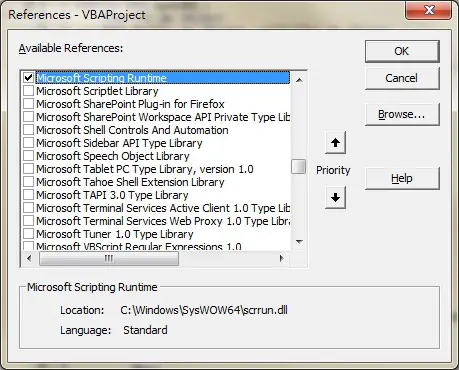
Install Microsoft Scripting Runtime
You should be able to run FSO in Excel 2013. If you fail to run FSO Object, open VBE (ALT+F11) > Tools > References > Check the box Microsoft Scripting Runtine
Excel VBA – Add password to all Excel workbook in folder

The below Procedure adds password “yourpassword” to all Excel under folder C:\Users\WYMAN\Desktop\excelfolder and all subfolders one level down.
Public Sub addPassword()
    Dim FSO As Object
    Dim folder As Object, subfolder As Object
    Dim wb As Object

    Set FSO = CreateObject("Scripting.FileSystemObject")
    folderPath = "C:\Users\WYMAN\Desktop\excelfolder"
    Set folder = FSO.GetFolder(folderPath)

    With Application
        .DisplayAlerts = False
        .ScreenUpdating = False
        .EnableEvents = False
        .AskToUpdateLinks = False
    End With

    For Each wb In folder.Files
        If Right(wb.Name, 3) = "xls" Or Right(wb.Name, 4) = "xlsx" Or Right(wb.Name, 4) = "xlsm" Then
            Set masterWB = Workbooks.Open(wb)
            ActiveWorkbook.SaveAs Filename:=Application.ActiveWorkbook.FullName, Password:="yourpassword"
            ActiveWorkbook.Close True
        End If
    Next
    For Each subfolder In folder.SubFolders
        For Each wb In subfolder.Files
            If Right(wb.Name, 3) = "xls" Or Right(wb.Name, 4) = "xlsx" Or Right(wb.Name, 4) = "xlsm" Then
                Set masterWB = Workbooks.Open(wb)
                ActiveWorkbook.SaveAs Filename:=Application.ActiveWorkbook.FullName, Password:="yourpassword"
                ActiveWorkbook.Close True
            End If
        Next
    Next
    With Application
        .DisplayAlerts = True
        .ScreenUpdating = True
        .EnableEvents = True
        .AskToUpdateLinks = True
    End With
End Sub
Excel VBA – Remove password to all Excel workbook in folder
The difference between Remove password and Add password is that for remove password, we open workbook with the existing password and save the file with no password (double quote “”).
Public Sub removePassword()
    Dim FSO As Object
    Dim folder As Object, subfolder As Object
    Dim wb As Object

    Set FSO = CreateObject("Scripting.FileSystemObject")
    folderPath = "C:\Users\WYMAN\Desktop\excelfolder"
    Set folder = FSO.GetFolder(folderPath)

    With Application
        .DisplayAlerts = False
        .ScreenUpdating = False
        .EnableEvents = False
        .AskToUpdateLinks = False
    End With

    For Each wb In folder.Files
        If Right(wb.Name, 3) = "xls" Or Right(wb.Name, 4) = "xlsx" Or Right(wb.Name, 4) = "xlsm" Then
            Set masterWB = Workbooks.Open(Filename:=wb, Password:="yourpassword")
            ActiveWorkbook.SaveAs Filename:=Application.ActiveWorkbook.FullName, Password:=""
            ActiveWorkbook.Close True
        End If
    Next
    For Each subfolder In folder.SubFolders
        For Each wb In subfolder.Files
            If Right(wb.Name, 3) = "xls" Or Right(wb.Name, 4) = "xlsx" Or Right(wb.Name, 4) = "xlsm" Then
                Set masterWB = Workbooks.Open(wb, Password:="yourpassword")
                ActiveWorkbook.SaveAs Filename:=Application.ActiveWorkbook.FullName, Password:=""
                ActiveWorkbook.Close True
            End If
        Next
    Next
    With Application
        .DisplayAlerts = True
        .ScreenUpdating = True
        .EnableEvents = True
        .AskToUpdateLinks = True
    End With
End Sub
Add password to all Excel workbook in folder with User Interface
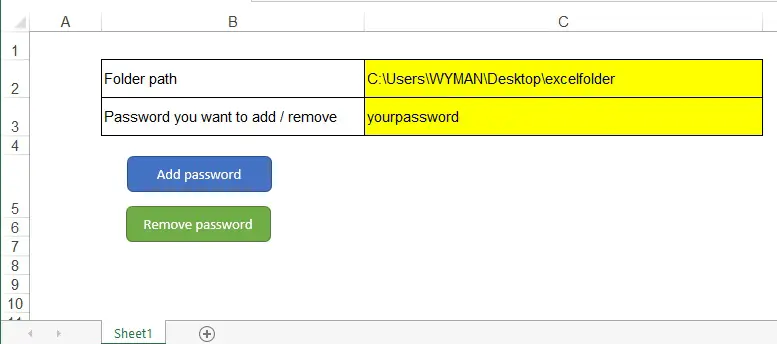
For those who are not familiar with VBA, I have written a template to add password or remove password for all Excel under specified path and one level down subfolders.
Click here to download the template.
You should be able to run FSO in Excel 2013. If you fail to run FSO Object, open VBE (ALT+F11) > Tools > References > Check the box Microsoft Scripting Runtine