This Excel VBA tutorial explains how to consolidate multiple workbooks into one workbook.
You may also want to read:
Excel VBA Consolidate worksheets into one worksheet
Excel VBA combine worksheets columns into one worksheet
Consolidate multiple workbooks into one workbook
Assume that you have a lot of workbooks, each workbook contains multiple worksheets. You may want to copy all worksheets of each workbook into a master workbook.
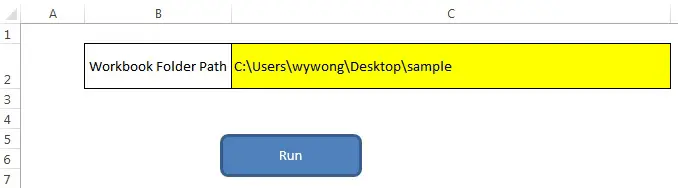
For example, I have a folder called “sample” under C:\Users\WYMAN\Desktop\sample
which contains three workbooks I want to consolidate

Workbook a contains one worksheet wbA ws1
Workbook b contains two worksheets: wbB ws1 and wbB ws2
Workbook c contains three worksheets: wbC ws1, wbC ws2, wbC ws3
Consolidate multiple workbooks – Procedure
Create a workbook called consolidate workbooks.xlsm, which only contains a blank worksheet Sheet1
Press ALT+F11 to enter into VBE, then insert a new Module, copy and paste the below code
Public Sub consolWB()
    Dim FSO As Object
    Dim folder As Object, subfolder As Object
    Dim wb As Object

    Set FSO = CreateObject("Scripting.FileSystemObject")
    folderPath = <span style="color: #0000ff;">"C:\Users\WYMAN\Desktop\sample"</span>
    Set folder = FSO.GetFolder(folderPath)

    With Application
        .DisplayAlerts = False
        .ScreenUpdating = False
        .EnableEvents = False
        .AskToUpdateLinks = False
    End With

    For Each wb In folder.Files
        If Right(wb.Name, 3) = "xls" Or Right(wb.Name, 4) = "xlsx" Or Right(wb.Name, 4) = "xlsm" Then
            Set openWB = Workbooks.Open(wb)
            For Each ws In openWB.Worksheets
                ws.Copy after:=ThisWorkbook.Sheets(ThisWorkbook.Sheets.Count)
            Next ws
            openWB.Close
        End If
    Next wb

    With Application
        .DisplayAlerts = True
        .ScreenUpdating = True
        .EnableEvents = True
        .AskToUpdateLinks = True
    End With
End Sub
Consolidate multiple workbooks – Result
Press F5 to run the Macro you just pasted, now you have consolidated all the worksheets of all workbooks under folder C:\Users\WYMAN\Desktop\sample
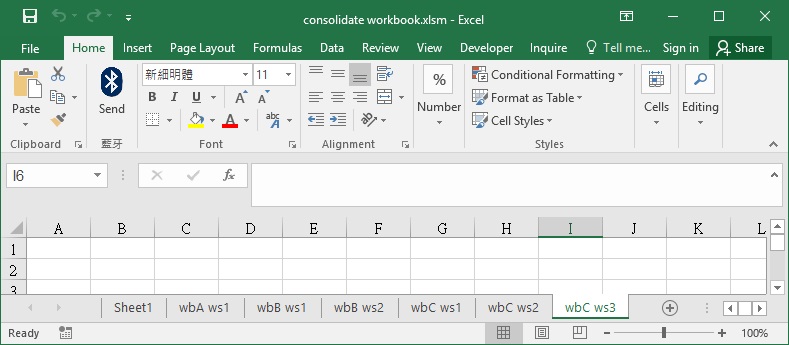
After combining all worksheets, you can sort the worksheets in alphabetic order. Click here for details.
Sub sortWS()
    For i = 1 To Worksheets.Count
        For j = i To Worksheets.Count
            If UCase(Sheets(j).Name) < UCase(Sheets(i).Name) Then
                  Sheets(j).Move before:=Sheets(i)
             End If
        Next j
    Next i
End Sub
In case you don’t want to write VBA, you can click here to download my simple template.