
This Access VBA tutorial explains how to import and export Access Objects to text using DoCmd.TransferText Method.
You may also want to read
Access VBA Export all Queries to Excel
Access VBA import txt using DoCmd.TransferText Method
Syntax of DoCmd.TransferText Method
DoCmd.TransferText(TransferType, SpecificationName, TableName, FileName, HasFieldNames, HTMLTableName, CodePage)
| Name | Required/Optional | Data Type | Description | |||||||||||||||||||||||||||||||||
| TransferType | Optional | AcTextTransferType | The type of transfer you want to make. You can import data from, export data to, or link to data in delimited or fixed-width text files or HTML files. The default value is acImportDelim. Only acImportDelim, acImportFixed, acExportDelim, acExportFixed, or acExportMerge transfer types are supported in a Microsoft Access project (.adp).
|
|||||||||||||||||||||||||||||||||
| SpecificationName | Optional | Variant | A string expression that’s the name of an import or export specification you’ve created and saved in the current database. For a fixed-width text file, you must either specify an argument or use a schema.ini file, which must be stored in the same folder as the imported, linked, or exported text file. To create a schema file, you can use the text import/export wizard to create the file. For delimited text files and Microsoft Word mail merge data files, you can leave this argument blank to select the default import/export specifications. | |||||||||||||||||||||||||||||||||
| TableName | Optional | Variant | A string expression that’s the name of the Microsoft Access table you want to import text data to, export text data from, or link text data to, or the Microsoft Access query whose results you want to export to a text file. | |||||||||||||||||||||||||||||||||
| FileName | Optional | Variant | A string expression that’s the full name, including the path, of the text file you want to import from, export to, or link to. | |||||||||||||||||||||||||||||||||
| HasFieldNames | Optional | Variant | Use True (–1) to use the first row of the text file as field names when importing, exporting, or linking. Use False (0) to treat the first row of the text file as normal data. If you leave this argument blank, the default (False) is assumed. This argument is ignored for Microsoft Word mail merge data files, which must always contain the field names in the first row. | |||||||||||||||||||||||||||||||||
| HTMLTableName | Optional | Variant | A string expression that’s the name of the table or list in the HTML file that you want to import or link. This argument is ignored unless the TransferType argument is set to acImportHTML or acLinkHTML. If you leave this argument blank, the first table or list in the HTML file is imported or linked. The name of the table or list in the HTML file is determined by the text specified by the <CAPTION> tag, if there’s a <CAPTION> tag. If there’s no <CAPTION> tag, the name is determined by the text specified by the <TITLE> tag. If more than one table or list has the same name, Microsoft Access distinguishes them by adding a number to the end of each table or list name; for example, Employees1 and Employees2. | |||||||||||||||||||||||||||||||||
| CodePage | Optional | Variant | A Long value indicating the character set of the code page. |
Export Access Query to TXT using DoCmd.TransferText Method
The below Procedure exports Query1 to the C:\test\ folder. The file will contain field name in the first row.
Public Sub export_query()
    DoCmd.TransferText transferType:=acExportDelim, TableName:="Query1", FileName:="C:\test\Query1.txt", hasfieldnames:=True
End Sub
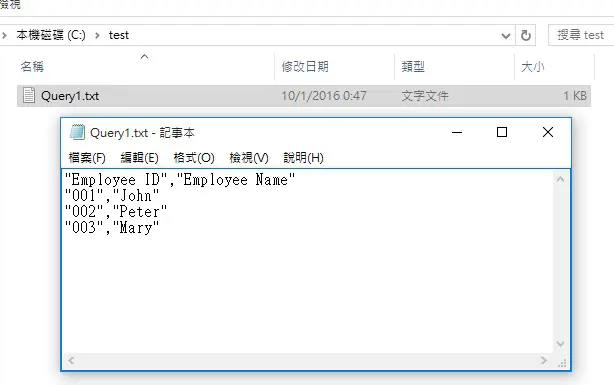
By default, text files exported via DoCmd.TransferText Method contain double quote around the data and field name.
There is no argument in the Method that we can use to remove the double quote, fortunately there is workaround using Specification argument in the Method.
First, perform a manual export using non-VBA approach (right click on a Query > Export > Text File > OK > click on the Advanced button
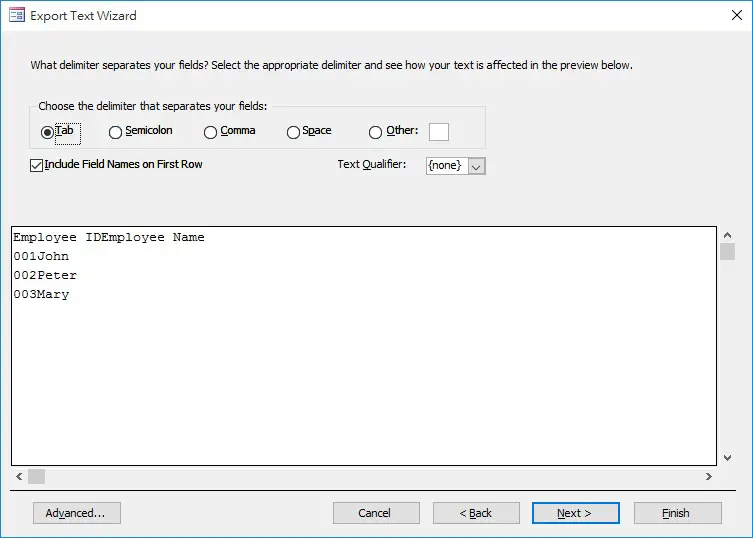
In the Text Qualifier dropdown box, select none > click on Save As > OK
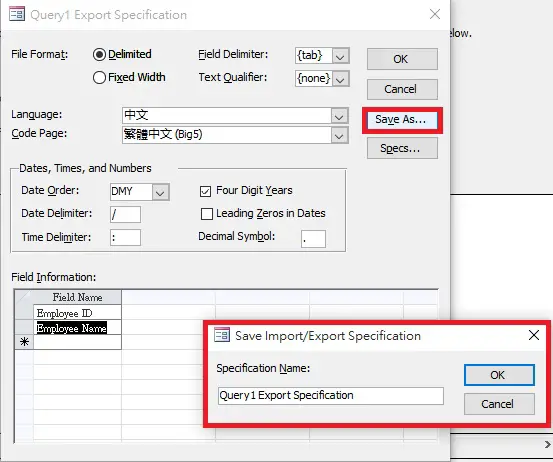
Now add one more parameter SpecificationName to the Procedure.
Public Sub export_query()
    DoCmd.TransferText transferType:=acExportDelim, SpecificationName:="Query1 Export Specification", TableName:="Query1", FileName:="C:\test\Query1.txt", hasfieldnames:=True
End Sub
Double quotes are removed.

Export Access Query to CSV using DoCmd.TransferText Method
There is no argument in DoCmd.TransferText Method to define how data is separated, whether by comma, semi colon, tab, etc. Instead we should define it in the Specification first.
As explained earlier, export a Query in the non-VBA way, press Advance button to define a Specification.
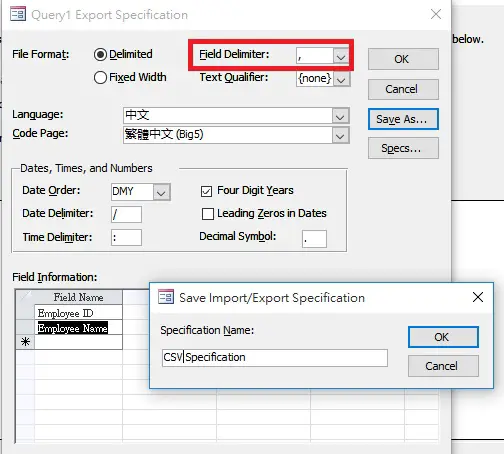
Then we can write the below Sub Procedure using the above CSV specification, also change the file extension to .csv
Public Sub export_query()
    DoCmd.TransferText transferType:=acExportDelim, SpecificationName:="CSV Specification", TableName:="Query1", FileName:="C:\test\Query1.csv", hasfieldnames:=True
End Sub
Export all Access Query using DoCmd.TransferText Method
For details refer to my previous post.
Public Sub export_query()
  Dim db As DAO.Database
  Dim qdf As DAO.QueryDef

  Set db = CurrentDb()
  For Each qdf In db.QueryDefs
    DoCmd.TransferText transferType:=acExportDelim, SpecificationName:="Query1 Export Specification", TableName:=qdf.Name, FileName:="C:\test\" & qdf.Name & ".txt", hasfieldnames:=True
  Next qdf
  Set qdf = Nothing
  Set db = Nothing
End Sub
Import TXT using DoCmd.TransferText Method
Prepare a TXT file
You can either create a blank Table in Access that will be used to import the TXT file, or let the Macro generate a new one for you.
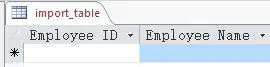
Again, you have to specify whether the text file is delimited by semi colon, tab, comma etc using the previously created Specification. Run the below Procedure.
Public Sub import_query()
    DoCmd.TransferText transferType:=acImportDelim, SpecificationName:="Query1 Export Specification", TableName:="import_table", FileName:="C:\test\Query1.txt", hasfieldnames:=True
End Sub
Import all TXT files in the folder
Public Sub import()
    Dim FileName, FilePathName, Path, FileNameList() As String
    Dim FileCount As Integer

    DoCmd.SetWarnings False
    Path = "C:\test\"
    FileName = Dir(Path & "")

    While FileName <> "" And Right(FileName, 3) = "txt"
        FileCount = FileCount + 1
        ReDim Preserve FileNameList(1 To FileCount)
        FileNameList(FileCount) = FileName
        FileName = Dir()
    Wend

    If FileCount > 0 Then
        For FileCount = 1 To UBound(FileNameList)
            FilePathName = Path & FileNameList(FileCount)
            DoCmd.TransferText transferType:=acImportDelim, SpecificationName:="Query1 Export Specification", TableName:="import_table", FileName:=FilePathName, hasfieldnames:=True
        Next
    End If
    DoCmd.SetWarnings True
End Sub
Outbound References
https://msdn.microsoft.com/en-us/library/office/ff835958.aspx