This Excel VBA tutorial explains how to export Excel to Word.
You may also want to read:
Excel VBA export Excel to Word
In the previous post, I demonstrated how to export Excel to PDF, which is very easy because there is already a built in function to do that (using Save As and choose PDF). However, there is no built in function to export Excel to Word. Fortunately Excel cell is actually a table in Word, we can simply copy the cells and paste to Word. This tutorial explains how to do it automatically using Excel VBA to export Excel to Word.
Excel VBA export Excel to Word (Single Worksheet)
Excel has about 1M rows and 16k columns, we cannot simply export the whole spreadsheet to Word. So the first question to think about is, what Range do we need to export to Word? My recommendation is to export all UsedRange. You may also consider to reset UsedRange before copy as explained in my previous post.
Insert the following Procedure in Excel Module
Sub export_excel_to_word()
    Set obj = CreateObject("Word.Application")
    obj.Visible = True
    Set newObj = obj.Documents.Add
    ActiveSheet.UsedRange.Copy
    newObj.Range.Paste
    Application.CutCopyMode = False
    obj.Activate
    newObj.SaveAs Filename:=Application.ActiveWorkbook.Path & "\" & ActiveSheet.Name
End Sub
For example, we have the below worksheet
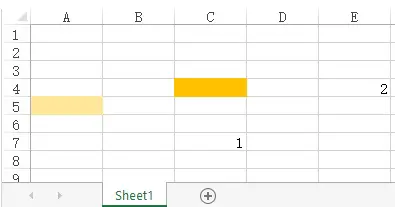
Run the Macro, and the below new Word document will pop up. The Word document is automatically saved as the Worksheet name under the same folder of the Workbook.
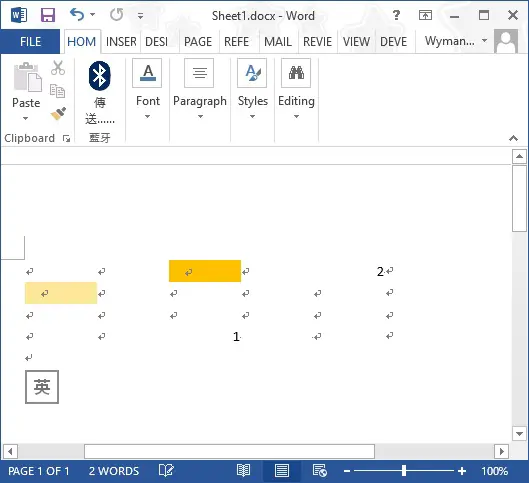
It is possible that the imported table length is too wide to display in Word, you can also use Word VBA Table.AutoFitBehavior Method to auto fit the table, which has the same effect of AutoFit in Word as below.
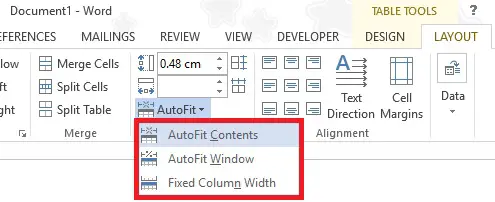
Run the below macro in Word VBA to loop through all tables in Word document to autosize.
Sub autoSizeTbl()
    For Each tbl In ActiveDocument.Tables
        tbl.AutoFitBehavior wdAutoFitContent
    Next
End Sub
Ideally this Macro can be run from Excel VBA, unfortunately I can’t get it work properly.
Excel VBA export Excel to Word (Multiple Worksheets)
Assume that we have Sheet1, Sheet2, Sheet3 in a Workbook “Export.xlsm”, we want to export all three worksheets to a single workbook.
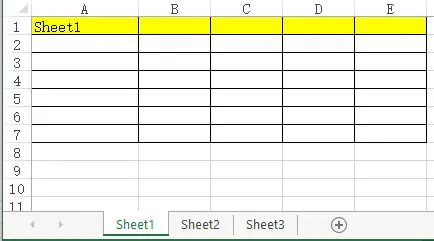
Insert a Excel Module and paste the below Procedure.
The below Procedure will copy usedRange of each Worksheet to Word and page break by each Worksheet. Finally save and name the Word document as the Workbook name.
Sub export_workbook_to_word()
    Set obj = CreateObject("Word.Application")
    obj.Visible = True
    Set newobj = obj.Documents.Add

    For Each ws In ActiveWorkbook.Sheets
        ws.UsedRange.Copy
        newobj.ActiveWindow.Selection.PasteExcelTable False, False, False
        newobj.ActiveWindow.Selection.InsertBreak Type:=7
    Next
        newobj.ActiveWindow.Selection.TypeBackspace
        newobj.ActiveWindow.Selection.TypeBackspace

    obj.Activate
    newobj.SaveAs Filename:=Application.ActiveWorkbook.Path & "\" & Split(ActiveWorkbook.Name, ".")(0)

End Sub
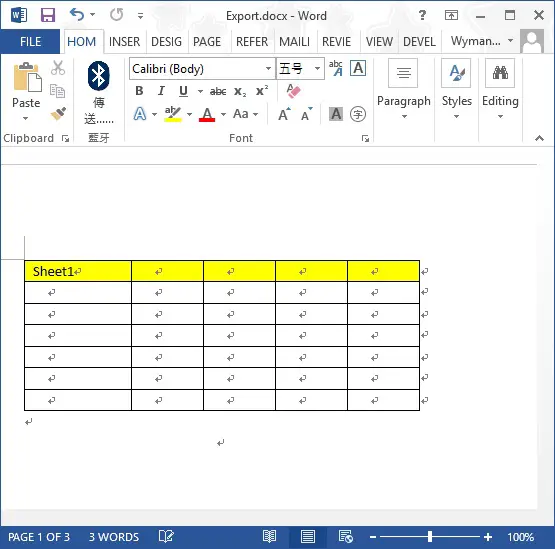
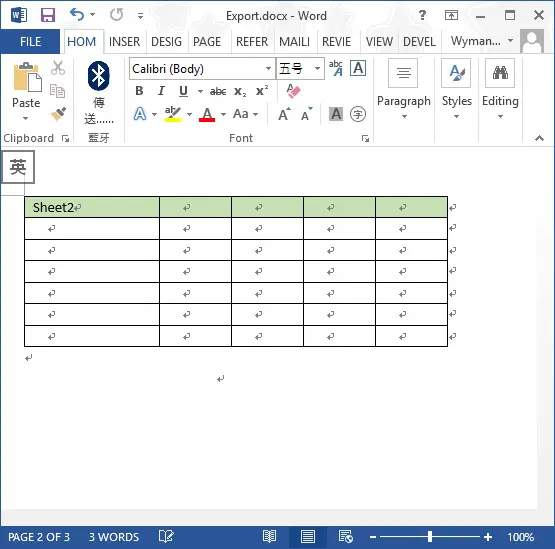
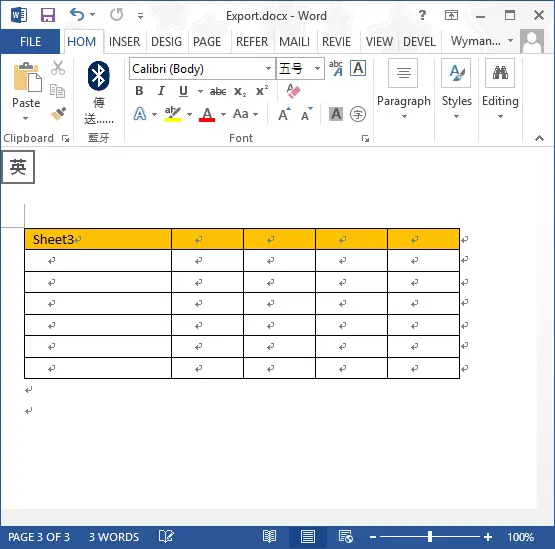
Run the Macro, a Word document called “Export.docx” pops up. Worksheet1 is pasted in page 1, Worksheet2 is pasted in page 2, Worksheet3 is pasted in page 3.