
This Excel tutorial explains how to export Excel to PDF with and without VBA, how to export all worksheets to one PDF, and export all worksheets to separate PDF.
You may also want to read:
Select multiple worksheets using Excel VBA
Excel export Excel to PDF
In Excel, navigate to File > Save As, in the Save As Type, you can save a file as different file types. Below is the available types in Excel 2013.
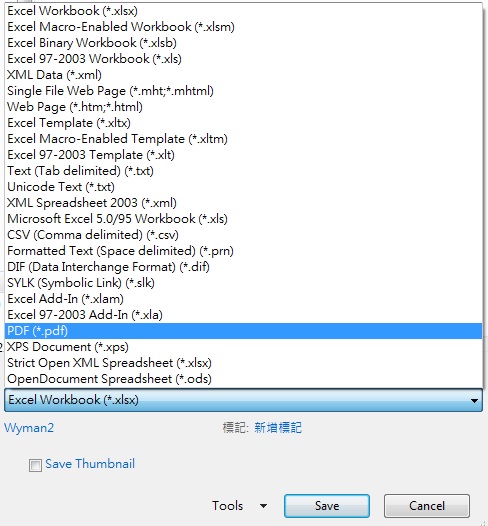
In this tutorial we are going to focus on exporting Excel to PDF.
Now select PDF, then click on the button Options

In Options, you can select whether to export Entire workbook to PDF or just Active worksheet(s).
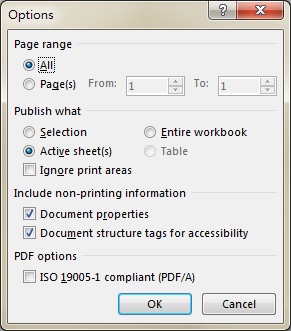
Note that Entire workbook means all worksheets are exported to one PDF.
Active sheet(s) means to export the selected sheets to one PDF. Normally Active sheet means the worksheet you are currently viewing before you press Save As, but you can hold down Ctrl to select multiple worksheets in order to export specific worksheets to one PDF.
Unfortunately there is no way to save each worksheet as separate PDF without VBA. You can read on if you are comfortable with VBA.
The items in Options are self-explanatory, except there are a few items that require clarification.
| Ignore print areas | Print the selection / entire worksheet and ignore print area |
| Document properties | Include title, subject, author, and similar information. |
| Document structure tags for accessibility | Include additional data that help disabled users |
| ISO 19005-1 compliant (PDF/A) | A standard of PDF, click here to see details |
If you want to read more about the non-VBA way of conversion, click here.
Excel VBA export Excel to PDF
In VBA, you can export Excel to PDF or XPS using ExportAsFixedFormat Method. This Method can be accessed through Workbook, Sheet, Chart, or Range.
Syntax of ExportAsFixedFormat
ExportAsFixedFormat(Type, Filename, Quality, IncludeDocProperties, IgnorePrintAreas, From, To, OpenAfterPublish, FixedFormatExtClassPtr)
| Name | Required/Optional | Data Type | Description |
| Type | Required | XlFixedFormatType | xlTypePDF or xlTypeXPS. |
| Filename | Optional | Variant | A string that indicates the name of the file to be saved. You can include a full path or Excel 2007 saves the file in the current folder. |
| Quality | Optional | Variant | Can be set to either xlQualityStandard or xlQualityMinimum.Use xlQualityStandard if your file includes picture. |
| IncludeDocProperties | Optional | Variant | Set to True to indicate that document properties should be included or set to False to indicate that they are omitted. |
| IgnorePrintAreas | Optional | Variant | If set to True, ignores any print areas set when publishing. If set to False, will use the print areas set when publishing. |
| From | Optional | Variant | The number of the page at which to start publishing. If this argument is omitted, publishing starts at the beginning. |
| To | Optional | Variant | The number of the last page to publish. If this argument is omitted, publishing ends with the last page |
| OpenAfterPublish | Optional | Variant | If set to True displays file in viewer after it is published. If set to False the file is published but not displayed. |
| FixedFormatExtClassPtr | Optional | Variant | Pointer to the FixedFormatExt class. |
Example 1 – export active worksheet to PDF
The below code save the active worksheet to default location. After Macro is run, PDF will automatically open.
Because I have not specified the file path for flexibility purpose, after PDF is generated and opened, choose Save As to check the path of the file saving carefully, it could be in My Document, Desktop or current Workbook folder. (I believe the location could vary depending on versions and situation)
In addition, I prefer to set Print Area manually beforehand to make sure the area I want to print is as expected.
Sub exportPDF()
    ActiveSheet.ExportAsFixedFormat _
    Type:=xlTypePDF, _
    Filename:=ActiveSheet.Name & ".pdf", _
    Quality:=xlQualityStandard, _
    IncludeDocProperties:=True, _
    IgnorePrintAreas:=No, _
    OpenAfterPublish:=True
End Sub
Example 2 – Export workbook / all worksheets to one PDF
Replace ActiveSheet with ActiveWorkbook.
Sub exportPDF2()
    ActiveWorkbook.ExportAsFixedFormat _
    Type:=xlTypePDF, _
    Filename:=ActiveWorkbook.Name & ".pdf", _
    Quality:=xlQualityStandard, _
    IncludeDocProperties:=True, _
    IgnorePrintAreas:=No, _
    OpenAfterPublish:=True
End Sub
Example 3 – Export all worksheets to separate PDF
The below code exports each worksheet to each PDF. The error handler is for preventing error caused by exporting blank worksheet.
Sub exportPDF3()
    For Each sht In ActiveWorkbook.Sheets
        On Error GoTo errorhandler
        sht.ExportAsFixedFormat _
        Type:=xlTypePDF, _
        Filename:=sht.Name & ".pdf", _
        Quality:=xlQualityStandard, _
        IncludeDocProperties:=True, _
        IgnorePrintAreas:=No, _
        OpenAfterPublish:=True
    Next
errorhandler:
End Sub
Example 4 – Export specific worksheets to PDF
The below code exports two separate PDF, each of them includes specific worksheets.
Sub exportPDF4()
        ActiveWorkbook.Sheets(Array("Sheet1", "Sheet2", "Sheet3", "Sheet5", "Sheet8", "Sheet12")).Select
        ActiveSheet.ExportAsFixedFormat _
        Type:=xlTypePDF, _
        Filename:="FileA.pdf", _
        Quality:=xlQualityStandard, _
        IncludeDocProperties:=True, _
        IgnorePrintAreas:=No, _
        OpenAfterPublish:=True

        ActiveWorkbook.Sheets(Array("Sheet1", "Sheet2", "Sheet3", "Sheet6", "Sheet9", "Sheet13")).Select
        ActiveSheet.ExportAsFixedFormat _
        Type:=xlTypePDF, _
        Filename:="FileB.pdf", _
        Quality:=xlQualityStandard, _
        IncludeDocProperties:=True, _
        IgnorePrintAreas:=No, _
        OpenAfterPublish:=True
End Sub
Outbound References
https://msdn.microsoft.com/en-us/library/bb238907%28v=office.12%29.aspx